Ripple CI is your automated pipeline for building, testing, and validating components. It ensures every component is compiled and ready for use while enforcing crucial safety and security guardrails.
When a job runs, its progress is displayed in a build graph. Understanding the status of each node in the graph is the first step to troubleshooting any issues.
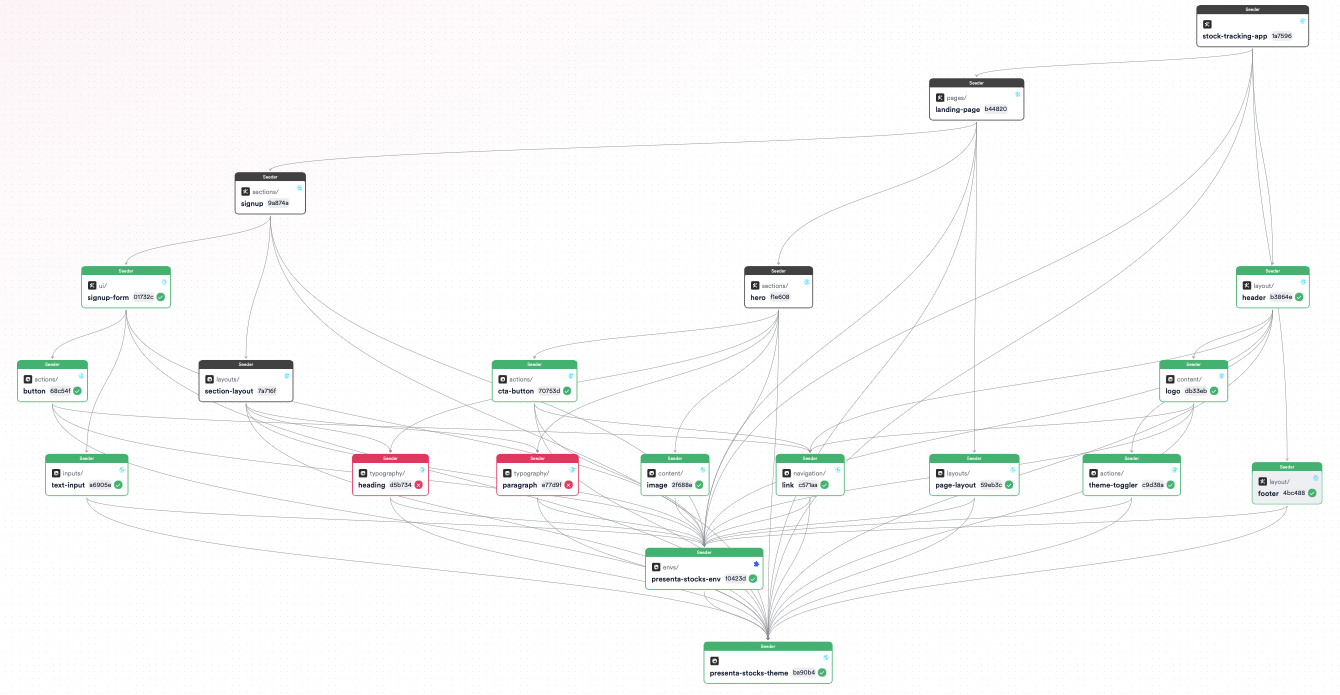
Understanding Job Statuses
- Pending (black node) - The component is waiting for other components it depends on to complete their builds.
- Failed (Red node) - The build for this component has failed. You will need to investigate the logs to resolve the issue.
- Positive (green node) - The component has been built successfully, and its artifacts are ready to be used.
Follow these steps to diagnose and resolve build failures efficiently.
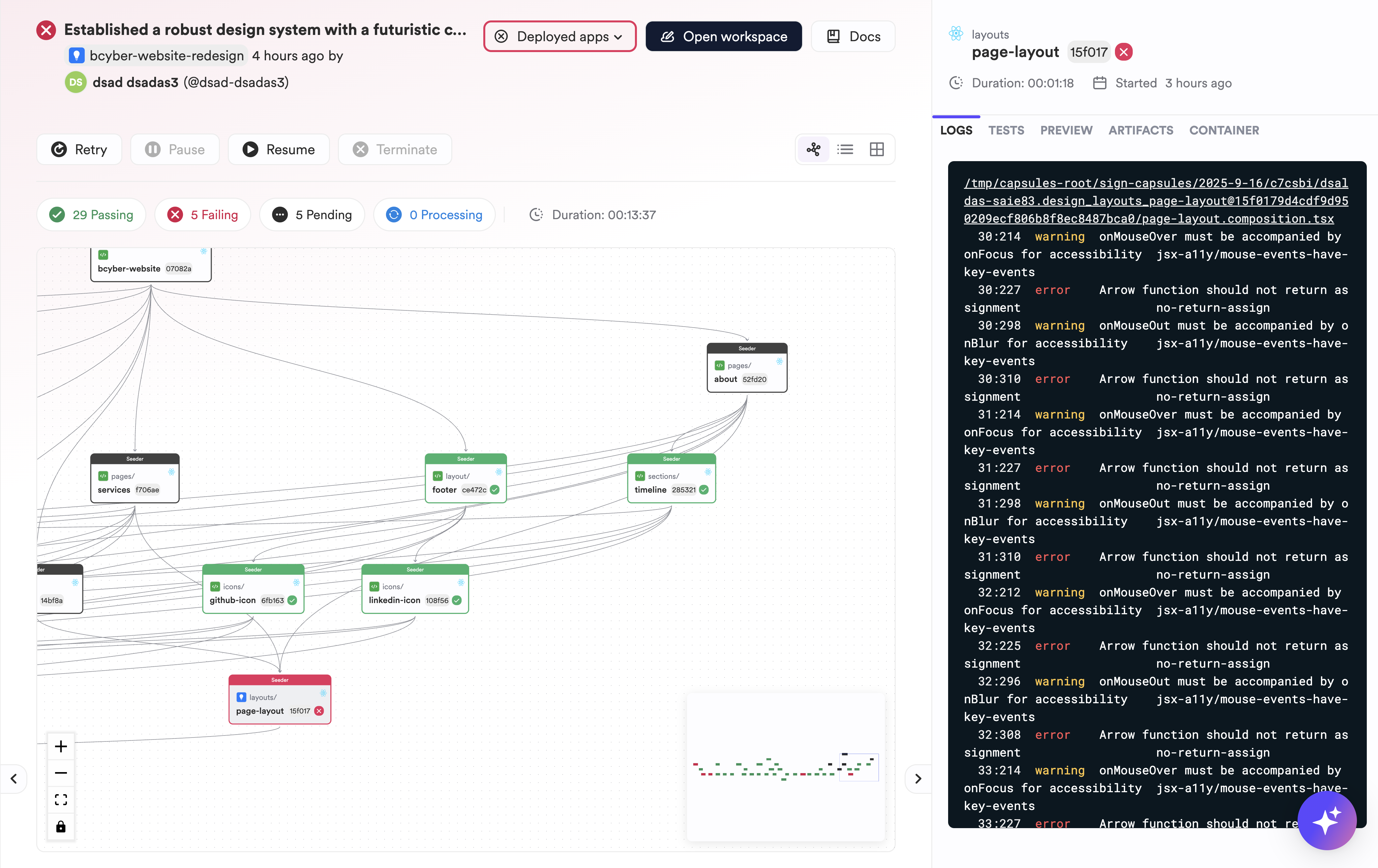
Step 1: Inspect the Error Logs
The error log is the most important tool for understanding why a build failed. Click on any red (failed) node in the graph to open its detailed logs. The logs will typically point you to the exact line of code or configuration that caused the error.
Step 2: Edit the Code to Apply a Fix
Once you've identified the problem from the logs, you can fix the code in a cloud workspace or by importing the lane into your local development environment.
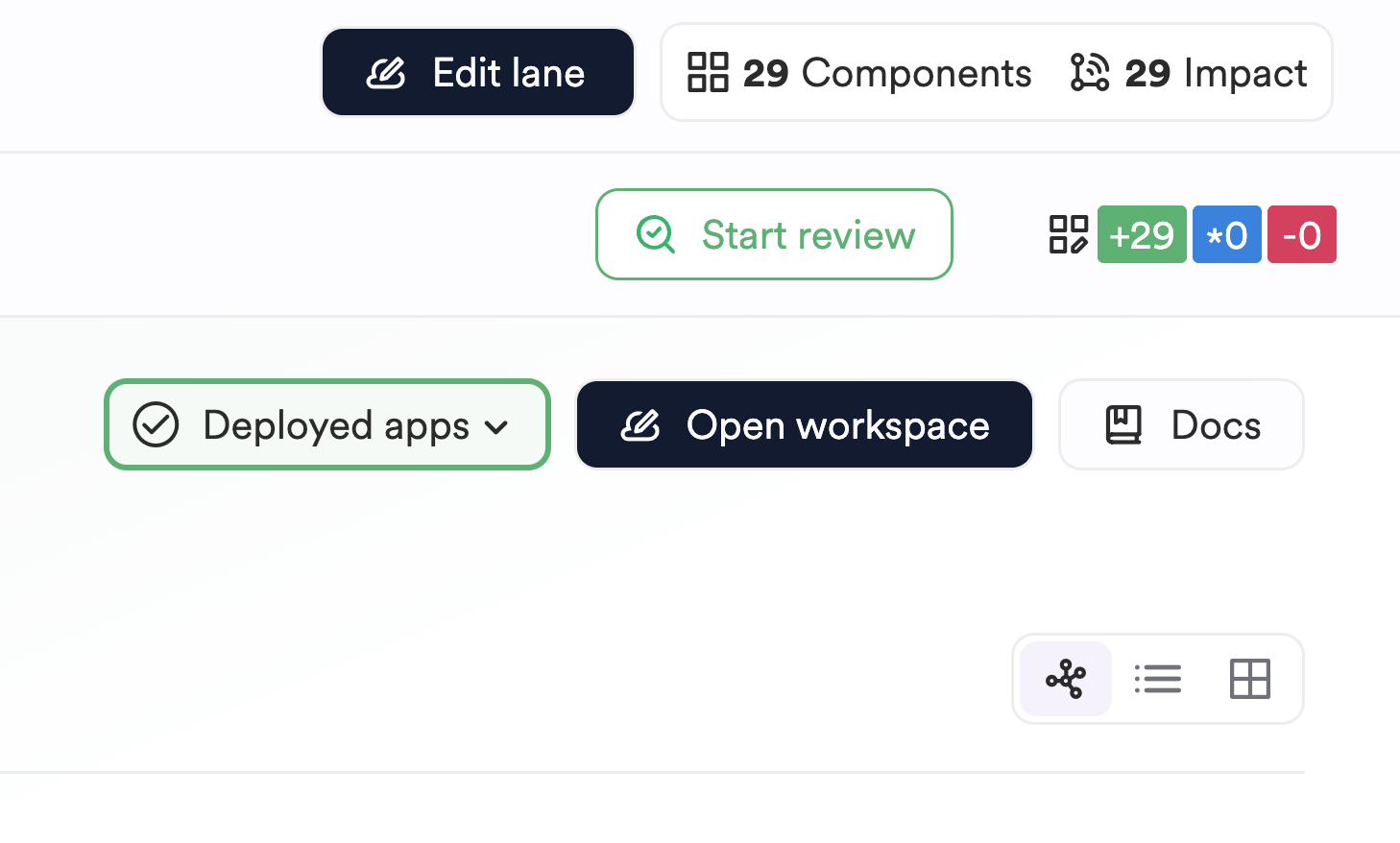
Option A: Use a Cloud Workspace (for quick edits)
The fastest way to make a change is by using a cloud workspace. Click the "Edit Code" button to instantly launch a fully configured development environment in your browser.
Option B: Use Your Local Environment
For more complex issues, you may prefer to work locally. Import the lane to your local machine by running the following command in your terminal:
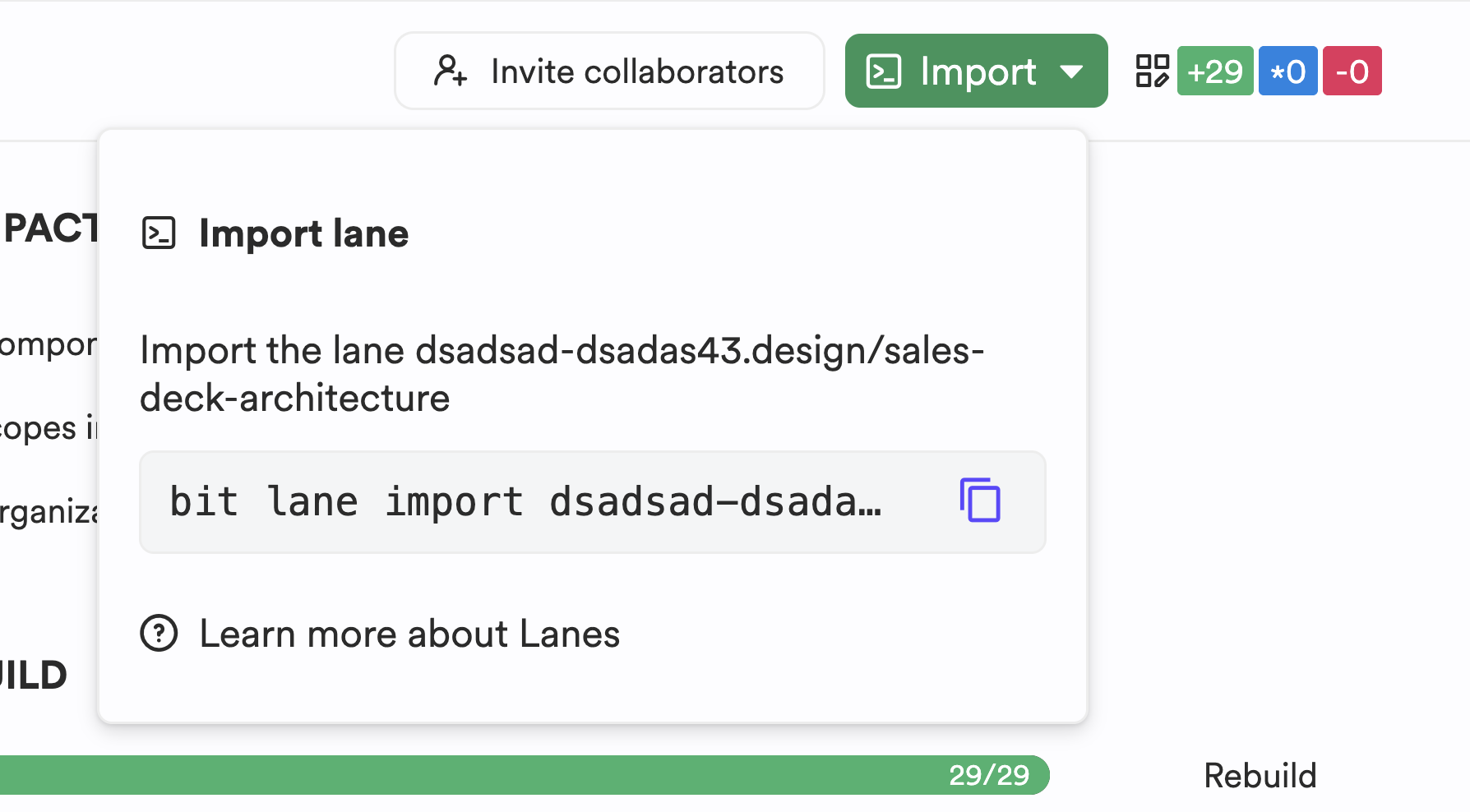
bit lane import [lane-name]

Step 3: Snap and Export Your Changes
After you've fixed the code, snap the changes with a clear message and export them. This will automatically trigger a new Ripple CI job to validate your fix.
bit snap -m "fix: resolve build failure by updating dependency" && bit export
Sometimes, a job may fail due to a temporary issue, such as a network timeout or a brief infrastructure glitch, rather than a code error. In these cases, you can simply use the "Retry" button to run the job again without needing to push a new version.