You can maintain multiple Cloud Workspaces, each dedicated to specific component sets or projects. Access your workspaces through your personal Cloud Workspaces lobby.
The lobby organizes workspaces into:
- Pinned Workspaces: For long-term maintenance.
- Recently Used: For quick access to recent work.
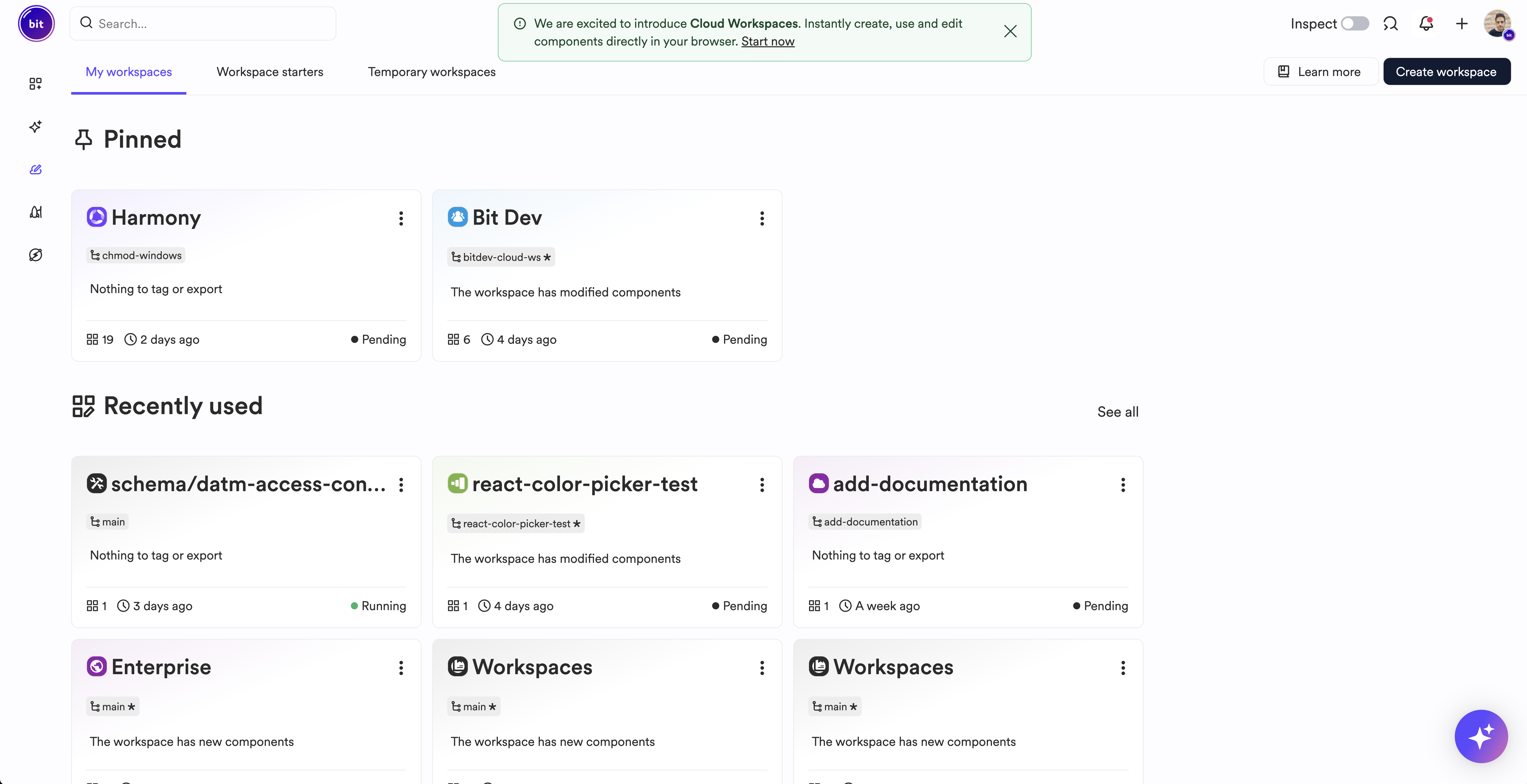
Each workspace card displays:
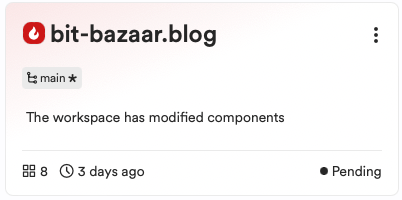
- Name: Workspace description.
- Lane Name: Currently checked-out lane.
- Status: Modified or new component indicator.
- Number of Components: Total components in the workspace.
- Last Used: Time since last access.
- Activity Monitor: Running or pending status.
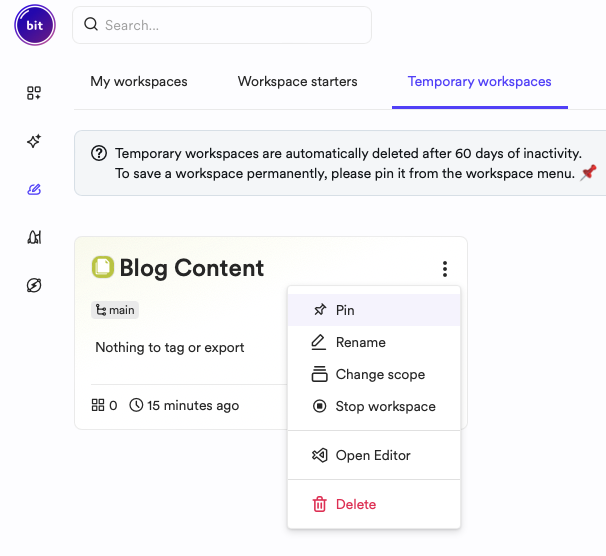
Cloud Workspaces are temporary (60 days) by default. To retain a workspace, pin it.
- Go to your temporary workspaces.
- Find the workspace.
- Click the settings action and select "Pin."
Cloud Workspaces are automatically managed: they enter a "pending" state when idle and resume when accessed. Manually control activity:
- Go to your Cloud Workspaces lobby.
- Find the workspace.
- View the activity state.
- Click the actions menu and select "Stop" or "Start."
Delete a Cloud Workspace:
- Go to your Cloud Workspaces lobby.
- Find the workspace.
- Click the actions menu and select "Delete."