Connect your design system to be used by Hope AI by wrapping your design system package with Bit components. This will allow for creating new UI components and pages with AI, connecting local agents like Github Copilot or Cursor via MCP, as well as tracking usage and releasing components independently.
Before prompting, connect your design and code sources so Hope AI can reference them during component generation.
Connect your Figma account to import design files directly into your prompts.
- Open the + menu in the Hope AI prompt editor.
- Click Figma file. If not yet connected, you'll be redirected to authorize Figma via OAuth.
- Once connected, the menu shows a Connected badge. Paste any Figma file URL to attach it to your prompt.
Hope AI uses your Figma designs as visual context to generate components that match your design specifications, including layout, spacing and styles.
Connect a GitHub repository to reference existing code, component libraries or Storybook projects in your prompts.
- Navigate to your organization settings: Settings → Repositories.
- Click Connect and install the Bit Cloud GitHub App on the repositories you want to use.
- Once connected, open the + menu in the prompt editor and click Git repository.
- Paste a repository URL to attach it as context to your prompt.
This is available for organization accounts. For GitHub Enterprise Server, contact sales.
If your design system is built with Storybook, connect its repository using the GitHub integration above. Hope AI can reference your Storybook component source code, stories, and documentation when generating wrapped Bit components.
Prompt for the components needed by your design system using text or attached files:

Hope AI will propose an architecture for your design system components, ensure it contains all the components needed and refine the prompts for each of components.
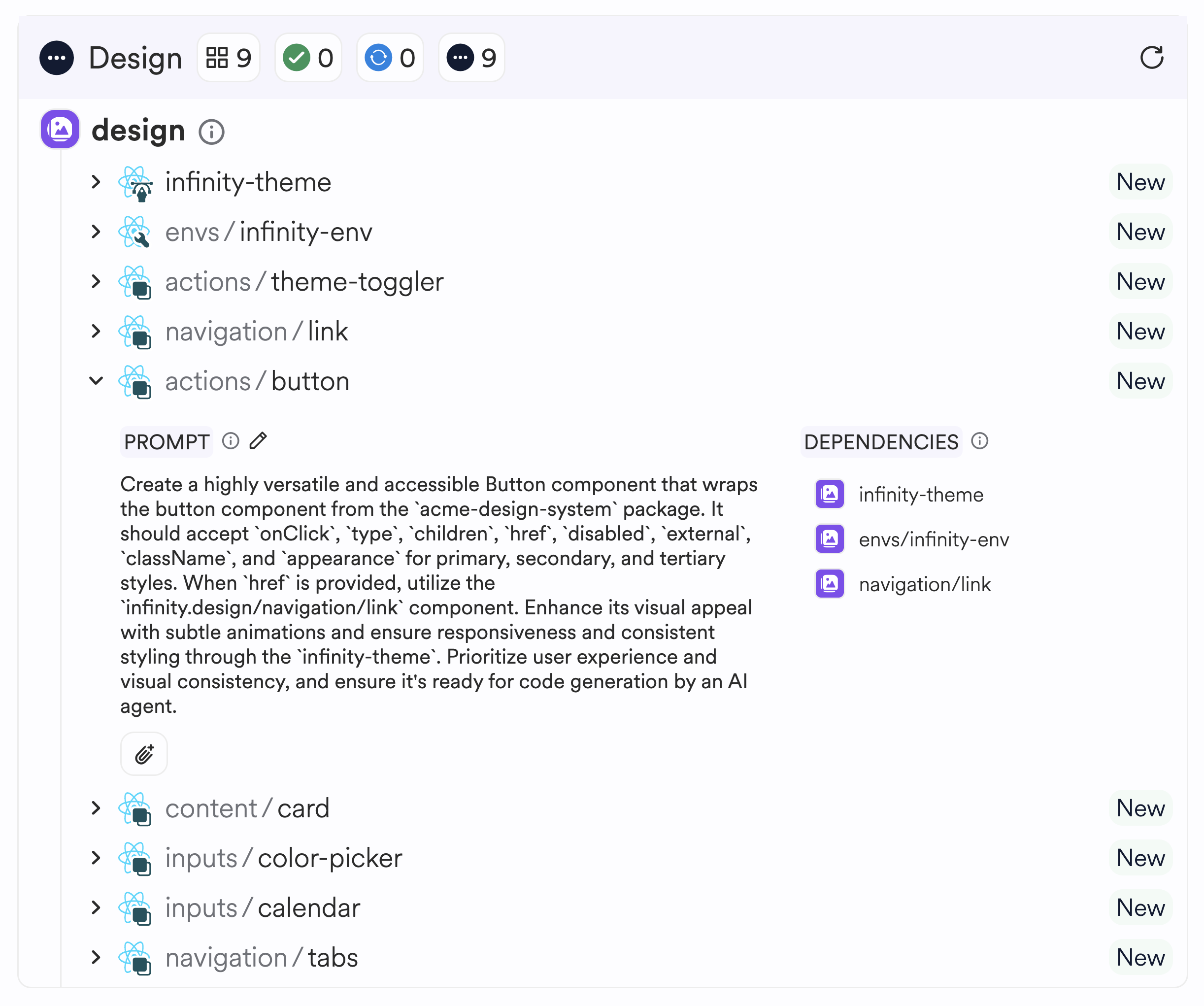
Copy the API props for each component from your library and paste to each specific prompt. Click "Edit prompt" via pencil icon to include the component API props to ensure correct reuse of your design components.
Save the changes by clicking "Save changes" via the checkmark icon. For new components, attach specification documents or images to increase accuracy and handling of component states.
After providing the correct and complete context for each components, click the "Start generating" button to start the generation process.
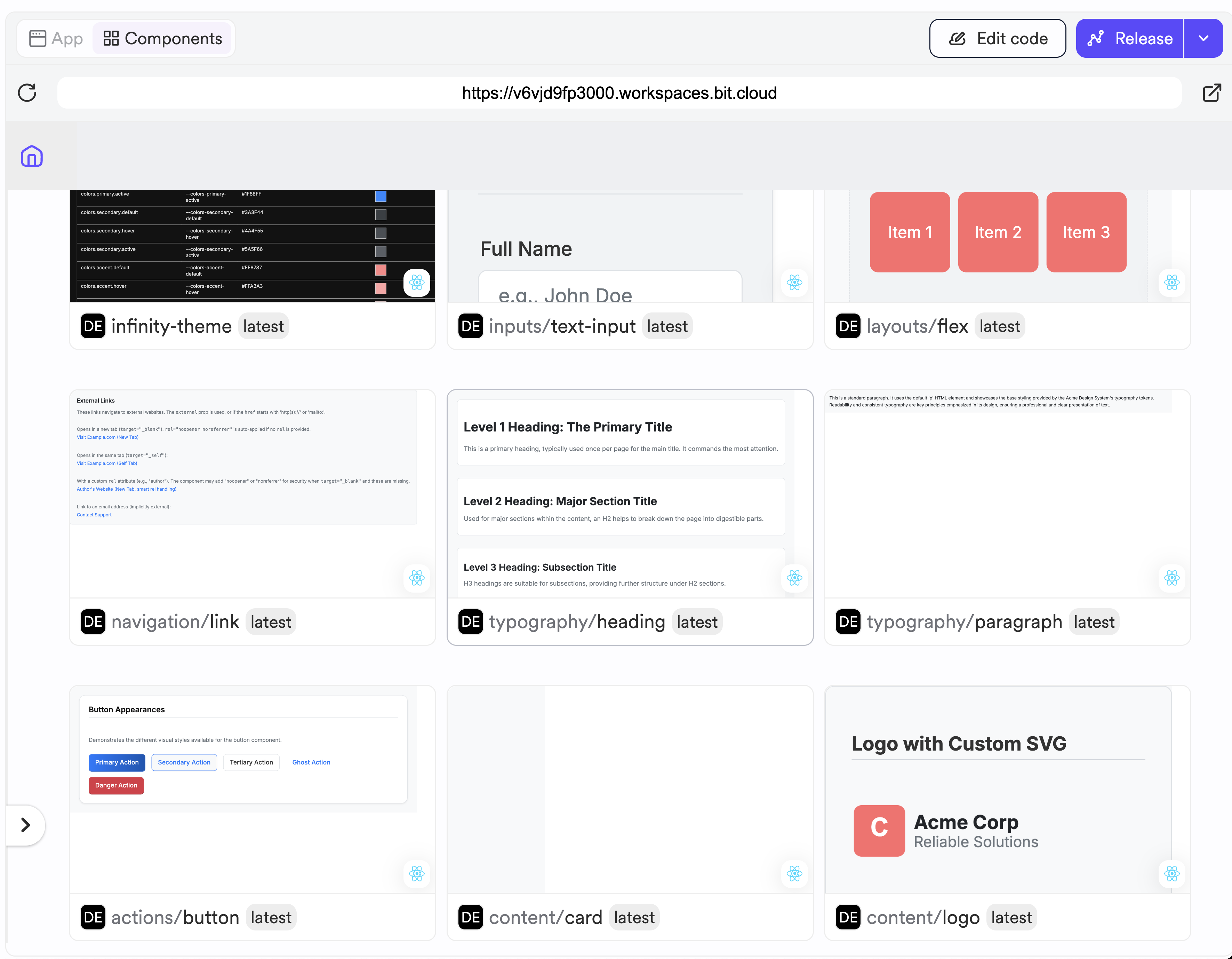
After clicking the "Start generating" button, components will start appearing in your workspace. Once components appears, you can start refining it to meet your needs using additional prompts or direct code changes by clicking the "Edit code" button.
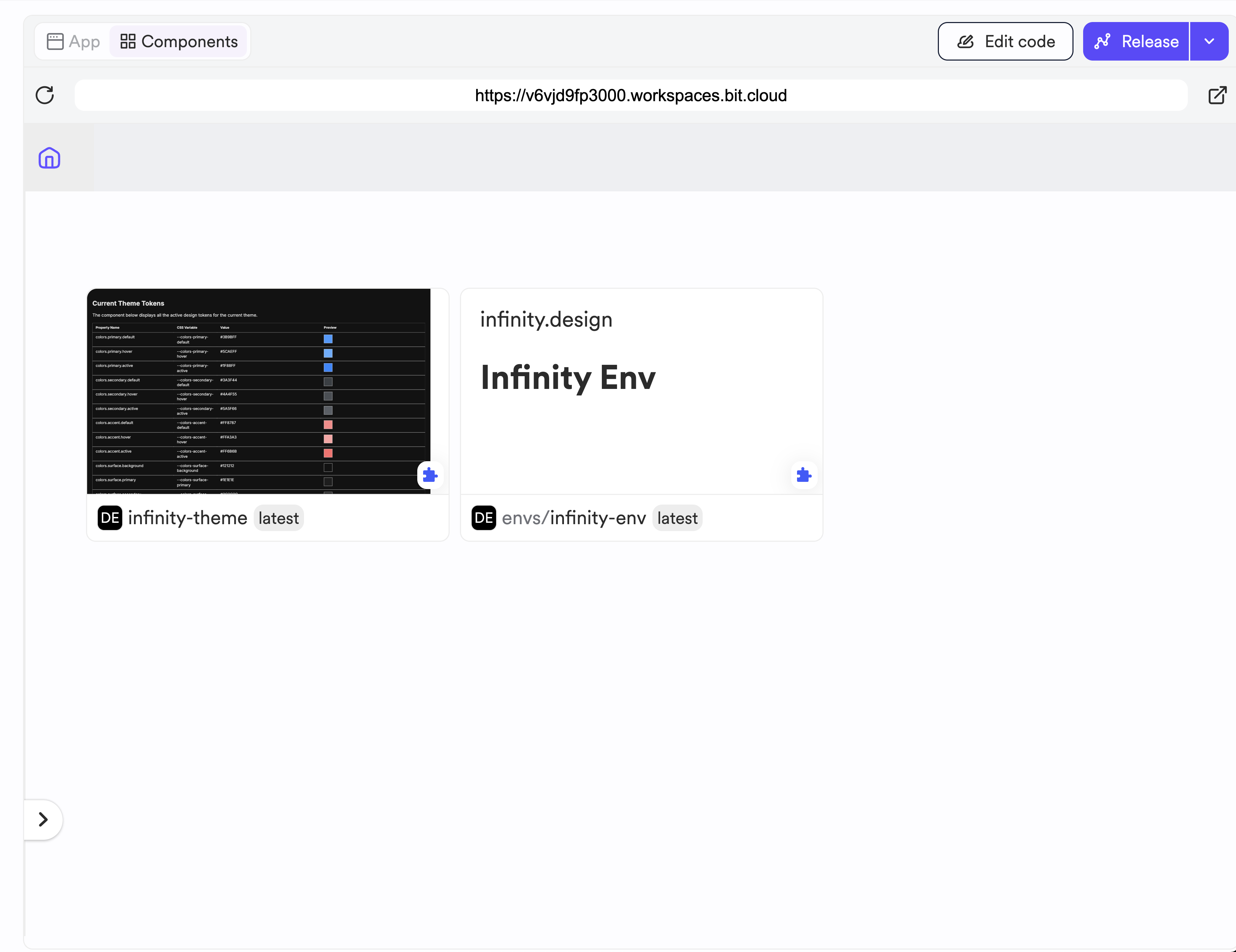
Use the theme to bridge your design to developers and AI agents, providing semantic and understandable design token names for developers and AI agents to use.
Edit the theme-tokens.ts file to ensure correct use of tokens from your existing design system in new code generated by AI. Check and set for correct values in the file itself.
Define your tech stack using the generated reusable dev environment. Configure the correct package and version range to use in the env.jsonc:
// env.jsonc { "peers": [ { "name": "my-design-system-package", "version": "^1.0.0" } ] }

To connect packages in private hosted registries like Artifactory or Nexus contact our sales team.
Ensure the generated components are wrapping and exporting your design system components properly. This allows for building a source of truth for future customizations or improvements without risking breaking changes.
Expect wrappers to import the requested package name (acme-design-system) and the provided API props.
Once ready, click the "Release" button to ship your wrapped UI components.
Track the Ripple CI job to ensure component builds are passing and prompt Hope AI or edit code in the workspace to fix linting, test or type issues potentially found in components.
After builds are passing, head to Hope AI to create a new prompt or start installing packages in your projects to reuse your components.
For reference, below is a list of design system examples, wrapped with Bit components:
To create your design system locally with your AI agent of choice, head to the Bit.dev documentation.