Invite users to collaborate with you by adding them as members to your organization.
Before inviting anyone to your organization, ensure you are an administrator and have sufficient unused seats.
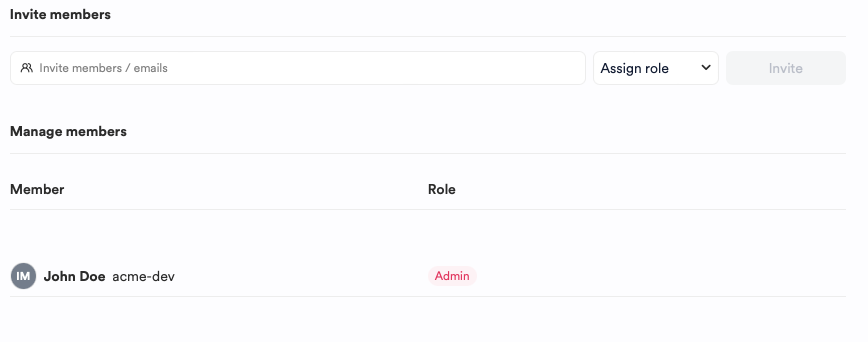
To invite a user, you'll need their email address or registered Bit Cloud account name. Once you have this information:
- Go to your organization settings and find the Members tab.
- Type the user's email or account name in the invite box.
- Select the desired role for that person.
- Click the Invite button.
The invited user will receive an email prompting them to approve the invitation. This email is valid for 72 hours. If the invite expires, you'll need to resend it.
Organizations configured with SAML-SSO do not require manual member invitations. Users are automatically added to the organization as members when they log in using their company email. You can adjust their permissions later if needed.
If you wish to revoke a user's licensed seat in your organization or their access to your Bit Components, you can remove them from the organization.
- Go to your organization settings and find the Members tab.
- Locate the user you want to remove from the organization member list.
- Hover over the user and select Remove User.
- Follow the on-screen instructions to remove the user.