Your account information is secured through Bit Cloud authentication. This document outlines the various methods for logging in and managing your authentication settings.
Authentication methods vary depending on how you access your resources.
This method allows access to all your managed content and web features from your browser, including Cloud Workspaces and Scope management.
Upon signing up for Bit Cloud, you create a password. Using a strong password or a password manager to generate a secure and unique one is highly recommended. During login, you'll be prompted to enter the username and password you provided during signup.
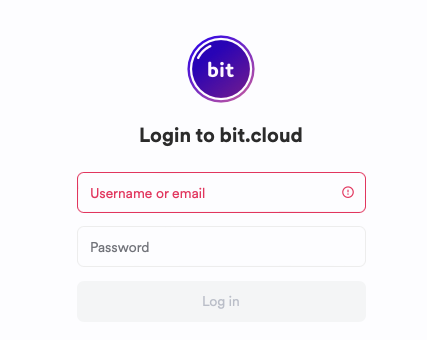
If you have enabled Two-Factor Authentication (2FA), Bit Cloud may request an additional verification step.
For users in enterprise accounts with a configured SSO-SAML method, a username and password are not required. You can log in using your corporate email address.
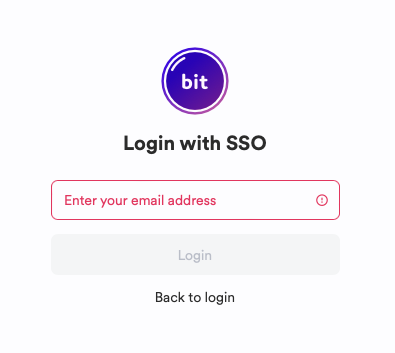
After entering your email, you'll be redirected to your company's authentication system, where you'll follow the provided instructions. Any 2FA requirements are handled by your company's authentication service.
Bit CLI authentication
Any Bit Cloud account can use the Bit.dev CLI tool to access and manage Bit Components. After installing Bit.dev on your system, log in to your Bit Cloud account using this command:
bit login

Bit will open a browser window and redirect you to Bit Cloud.
- If you're not logged in, you'll be prompted to authenticate using SSO or username and password.
- If you're already logged in to the web UI, Bit.dev will generate an authentication token for your account.
Logged in as USERNAME and .npmrc updated.
Check your currently logged-in account:
bit whoami
Refresh the local token:
bit login --refresh-token
Manually set or unset the authentication token:
bit config get user.token // see your personal token bit config set user.token // set a personal token
Bit's VS Code extension uses the same authentication method as the Bit CLI, so separate authentication is not needed.
Bit Cloud utilizes the .npmrc file to configure access to your Bit Components. The bit login command automatically handles this authentication. Learn more about Bit and .npmrc
Enhance your account security by enabling Two-Factor Authentication (2FA) using an authentication app.
- Go to your authentication setting.
- Locate the Two-Factor Authentication section and select "Enable."
- Follow the on-screen instructions to connect your Bit account with your preferred 2FA application.