Lanes are used to group changes related to a specific business initiative that requires modifications across multiple components. They streamline the process of reviewing and merging changes for many components in a single, atomic action. Lanes are particularly beneficial for managing complex, cross-team, and cross-project changes in an atomic fashion. You can create lanes using Hope AI, Cloud Workspaces, the Bit CLI, and Git branches. Learn more about lanes.
When a lane is exported to Bit Cloud, it serves as a landing page for the business initiative, showcasing its implementation across components:
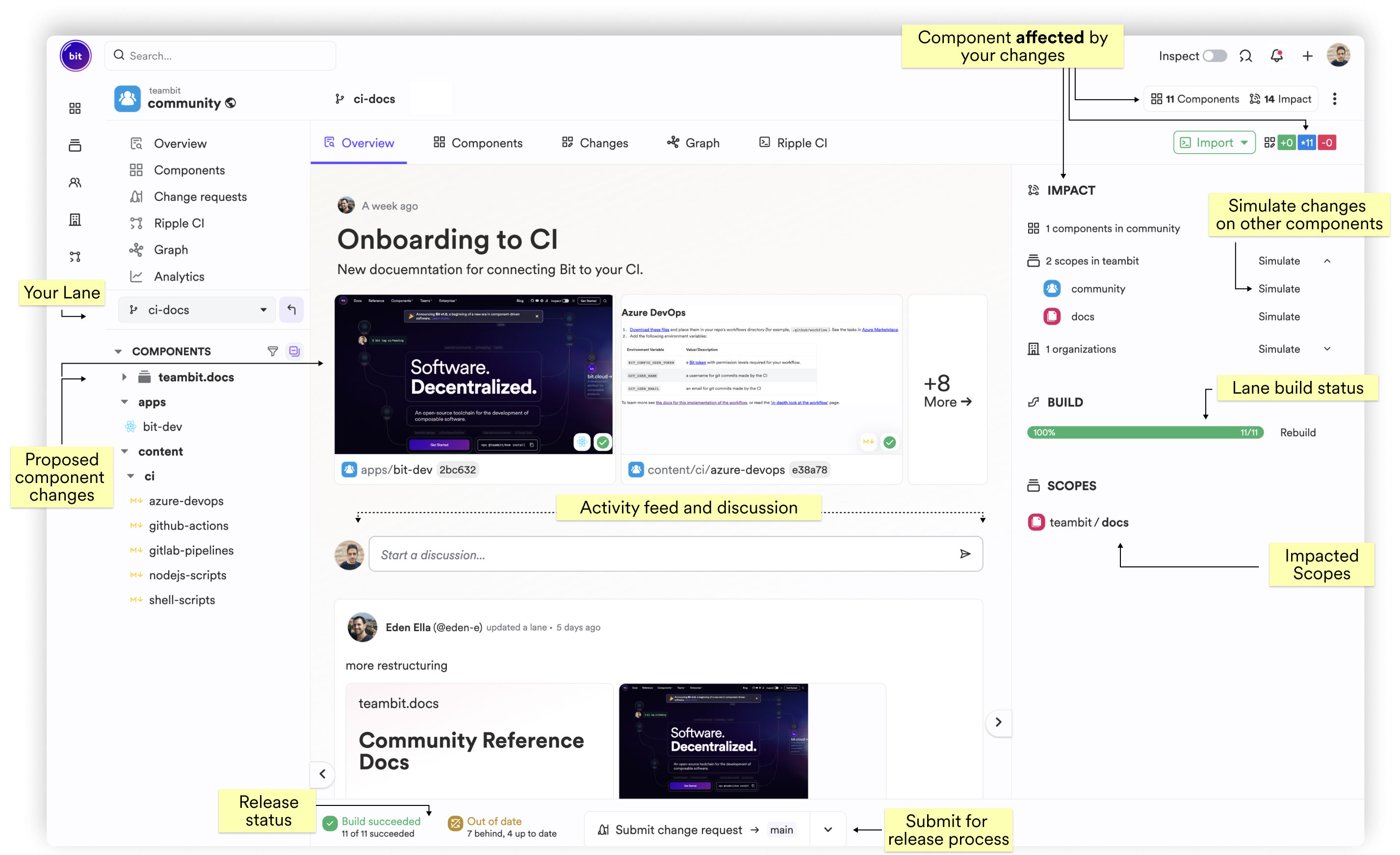
This page displays all changes to components and their impact on your codebase:
- The Overview dashboard provides a gallery of all components in the lane and a feed for change-related discussions.
- The Impact dashboard (top right) shows which teams and scopes across the organization use components modified in the lane.
- The Build status report displays the CI status of all components in the lane.
- The Release bar indicates the remaining steps before it's safe to merge and release the lane.
The main lane
As a way to define and sync across projects and teams which components as valid to be used, Bit Cloud defines a unique lane called main. This lane has several unique properties:
- Available across all scopes.
- Unable to rename.
- Allows defining semantic versions for component packages.
When you release a component, you are making it available in the main lane.
To merge a lane and release new versions of components, you need to submit a change request from the lane. You can also designate specific lanes as Protected Lanes to gain more control over release timing.
You can use and install components within a lane by navigating to their page and installing their generated package. Components in a lane are assigned pre-release versions instead of semantic versions. Consequently, the install command might resemble this:
bit install @bitdesign/sparks.actions.action-button@0.0.0-a3fbbdd48fb8cd333bf456584bc4b537e076e6d4

You can edit a lane from anywhere at any time. The top-right corner offers two buttons:
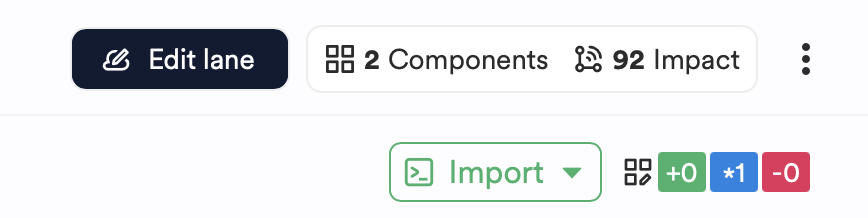
- Edit Lane: Creates a Cloud Workspace containing all components from the lane, enabling you to modify them.
- Import Lane: Provides the
bit importcommand syntax for editing the component from your local system. - Git Repository: If you've set up a Bit in a Git repo, all branches are synchronized as lanes.